

The contact record
A tour of a contact's full record, from the header and details to their deals, listings and the timeline tabs.
A contact’s record holds everything about them on one screen: who they are on the left, and every conversation with them on the right. Open it with Open full record from the preview or a row’s menu.
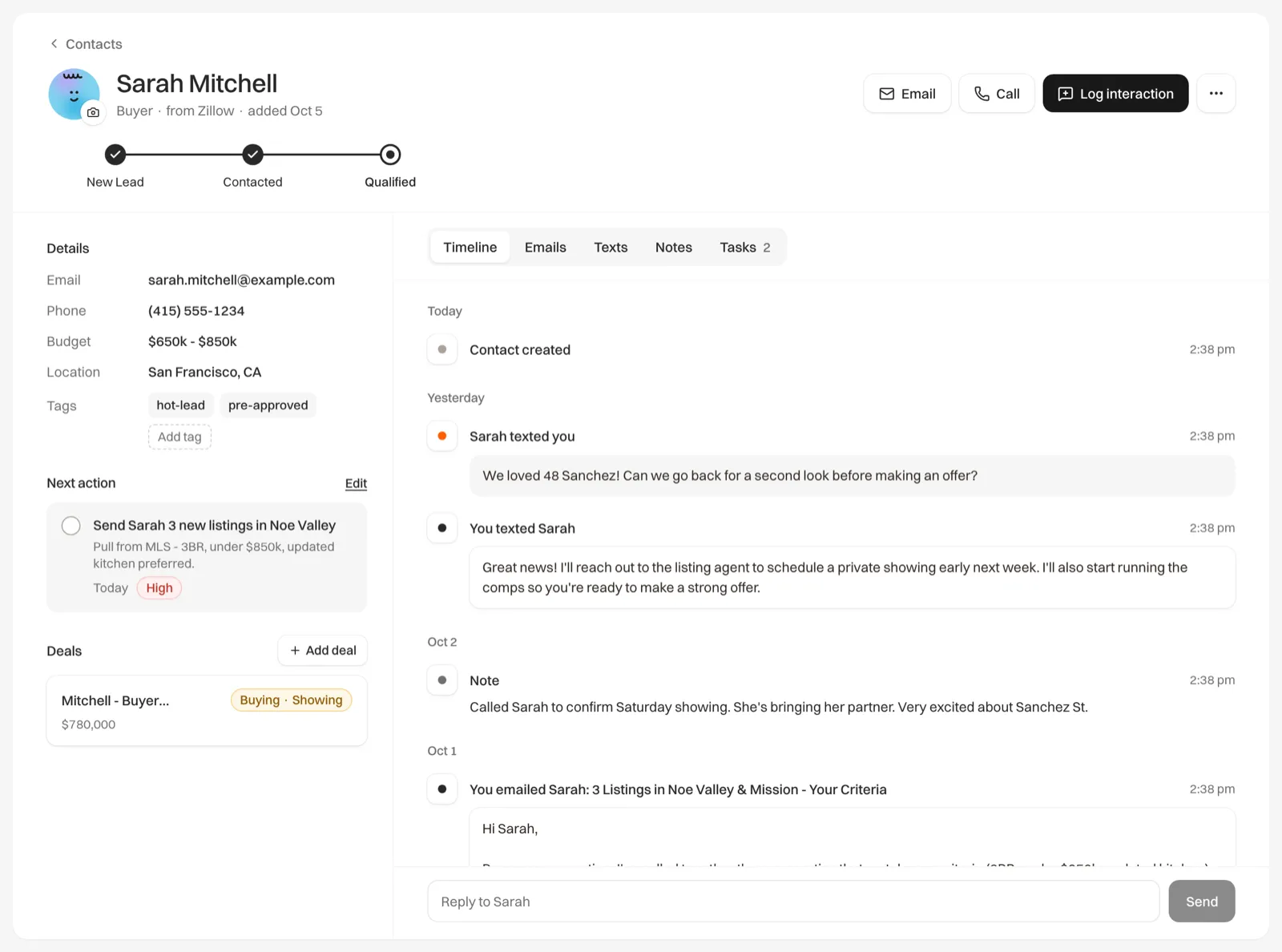
The header
- Their photo, with a camera button to add or change it. See Add a contact photo.
- Their name, with their lead type, their source (or their company when there is no source) and the day they were added.
- Email, Call and Log interaction. Email and Call show when you have their email address or phone number.
- The more menu (the three dots): Edit contact, Convert to active lead for someone who isn’t a lead, and Delete contact.
- The lead stage row: click a step to move them. Their deals move on their own. See Lead types and lead stages.
The left column
- Details: email, phone, budget and location, when you have them. Hover over the email or phone to show its copy button.
- Tags, at the end of Details: click Add tag to add one. See Tag your contacts.
- Next action: their next open task. Mark it done or Edit it, or click Set one when there isn’t one.
- Deals: each deal with its side and stage. Click Add deal to start one. See Pipeline and deals.
- Listings: homes they are selling with you.
- Interested in: listings they asked about, toured or are buying.
The tabs
- Timeline: everything in order, including emails, notes, logged calls and texts, form submissions and stage changes.
- Emails: your email conversation with them.
- Texts: texts you logged with Log interaction. Texting clients from Relivo is coming soon.
- Notes: your private notes about them.
- Tasks: their tasks, with a count of the open ones.
See Timeline, notes and logging and Tasks and reminders for those tabs.