

Use the Inbox
Read and reply to your conversations with contacts, see what's unread, search, and archive what you're done with.
The Inbox holds one conversation per contact: every email Relivo has logged between you, plus texts you’ve logged. The conversation with the newest message is at the top. Open a conversation to read it and reply without leaving the page.
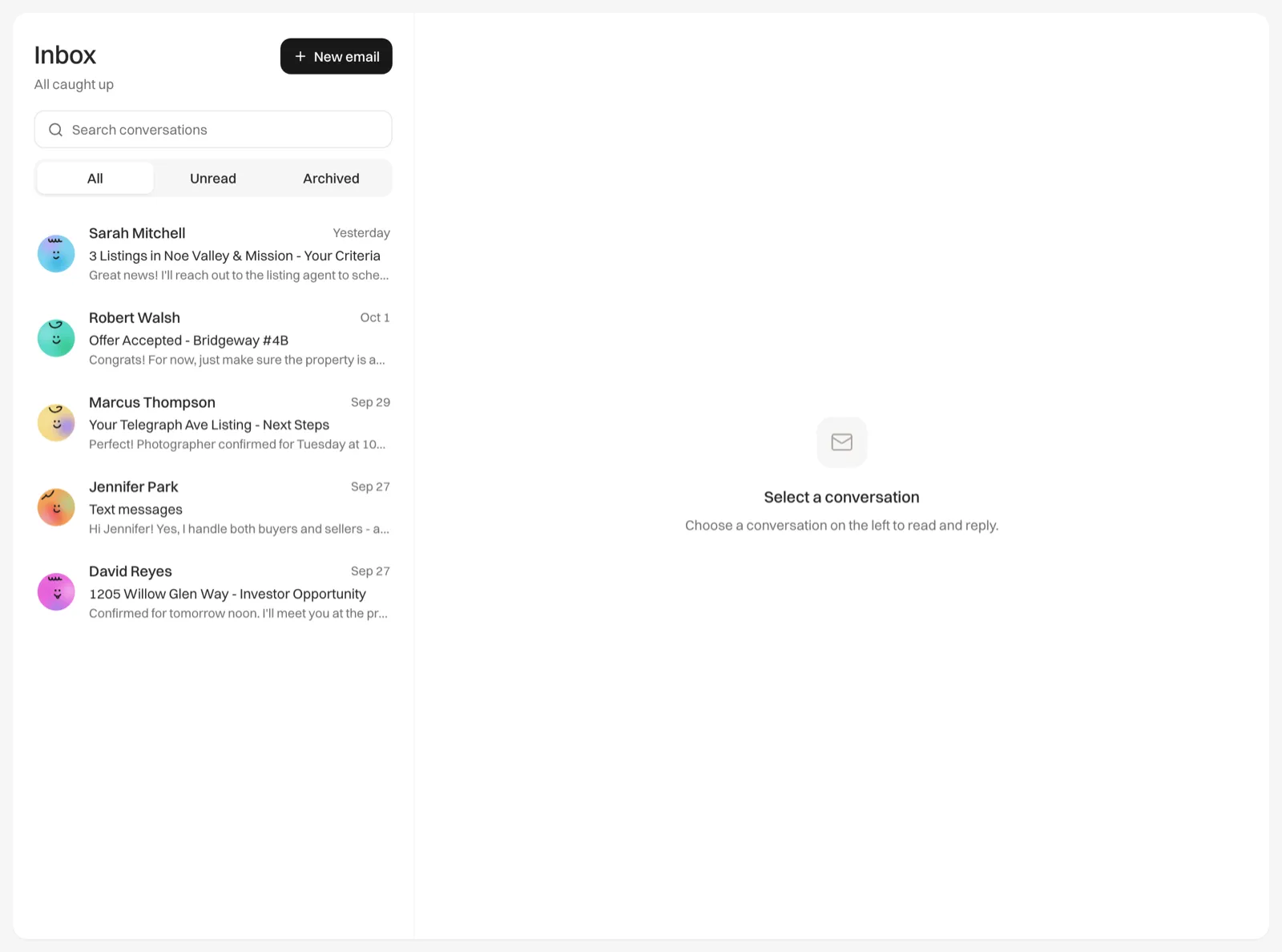
What’s in a conversation
- Emails you send from Relivo, and replies that come back to Relivo.
- With Two-way sync, email between you and the contact that went through your own mail app.
- Form submissions and property microsite enquiries, which arrive as messages from the contact, so you can reply to them here.
- Emails and texts you logged with Log interaction on the contact’s page.
Notes and logged calls stay on the contact’s timeline and don’t appear in the Inbox.
Read and reply
Open a conversation
Click a contact in the list. The conversation opens on the right, oldest message first.
Write your reply
Type in the box at the bottom. The reply goes to the address the contact last wrote from, with “Re:” and the conversation’s subject. If the conversation has only texts so far, add a subject first. With a mailbox connected, the box shows the address you’re sending From.
Attach files if you need to
Click the paperclip to attach files, up to 15 MB in total per email.
Send
Click Send, or press ⌘ Enter on a Mac or Ctrl Enter on Windows.
Open contact at the top of the conversation takes you to the contact’s full page.
Unread conversations
A conversation is unread when its newest message is from the contact and you haven’t opened it since. It shows an orange dot and a darker subject, and the count appears beside Inbox in the sidebar.
Opening a conversation marks it read after a couple of seconds. If you click away sooner, it stays unread. Read state is saved to your account, so it’s the same on every computer.
Find a conversation
- All, Unread and Archived at the top switch between views.
- Search conversations filters by the contact’s name, the subject or the start of the latest message.
Archive a conversation
Click Archive conversation (the box icon) in the conversation’s header, or hover over it in the list and click the same icon. It moves to Archived and no longer counts as unread. Nothing is deleted: the messages stay on the contact’s timeline.
To bring it back, open it from Archived and click Move back to inbox.