

Browse and search your listings
Filter your listings by status and type, search by address, and switch between the list and grid views.
Properties in the sidebar lists every listing you have, with its photo, address, property microsite, seller, price and status.
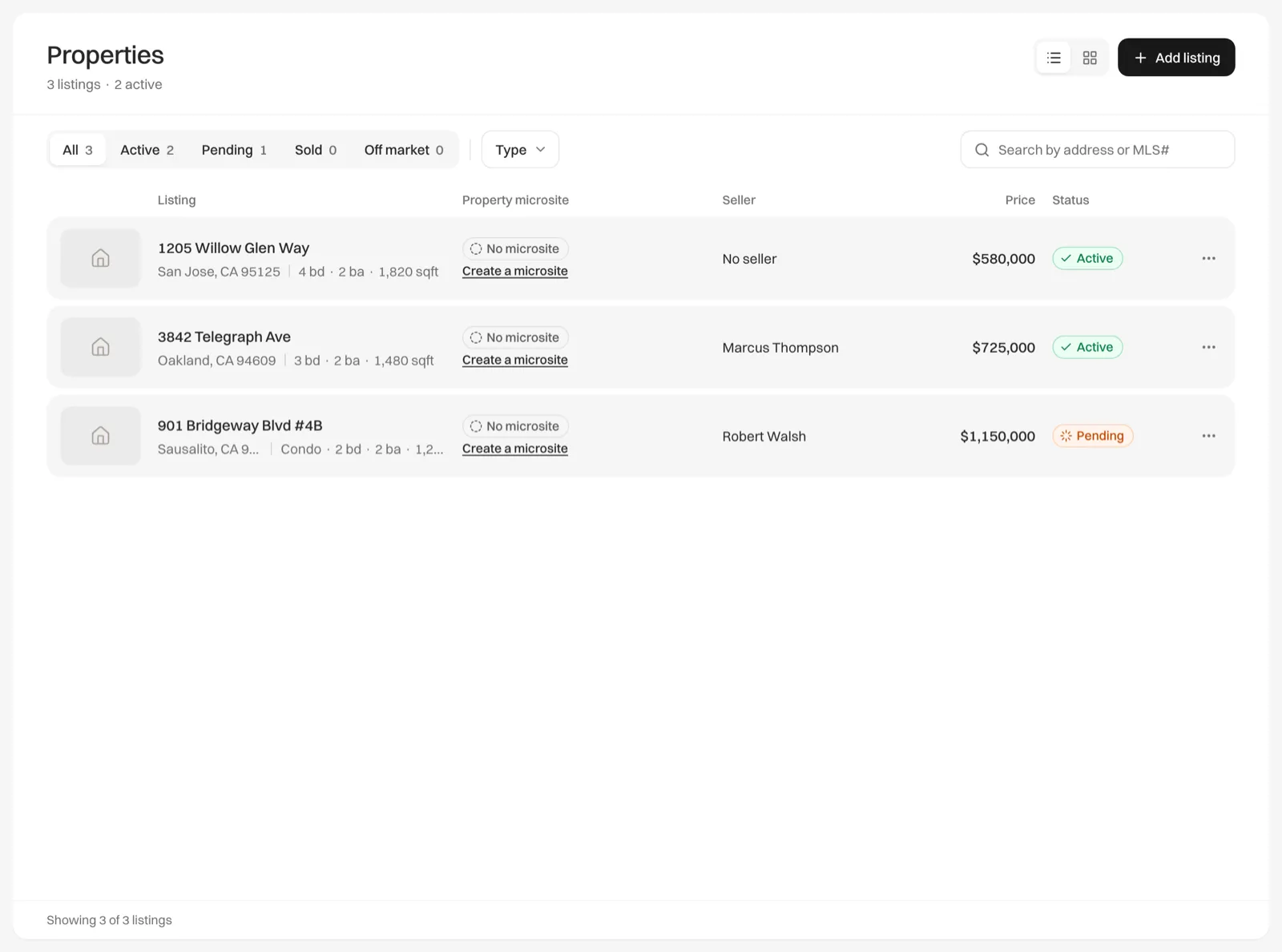
- Filter by status: All, Active, Pending, Sold or Off market, each with a count.
- Filter by type: Type narrows the list to Residential, Commercial, Land, Multi-family or Condo.
- Search: type part of the street, city, state or zip in the search box.
- Change the view: the toggle next to Add listing switches between a list and a grid of cards.
The Property microsite column shows whether the listing has a microsite: Live with its web address, Draft with “Not published yet”, or No microsite with a Create a microsite button. Narrow windows hide this column and the seller; the grid view shows the microsite on each card.
Click a listing to open it, or use the menu at the end of its row for Open listing, Edit listing, Create property microsite or Edit property microsite, and Delete.