

Import contacts from a CSV file
Bring contacts in from a spreadsheet or another CRM in four steps, upload, map columns, preview and import.
Click Import at the top of Contacts or Leads to open Import contacts. Which list you start from decides whether people come in as contacts or as leads (see Import into Contacts or Leads).
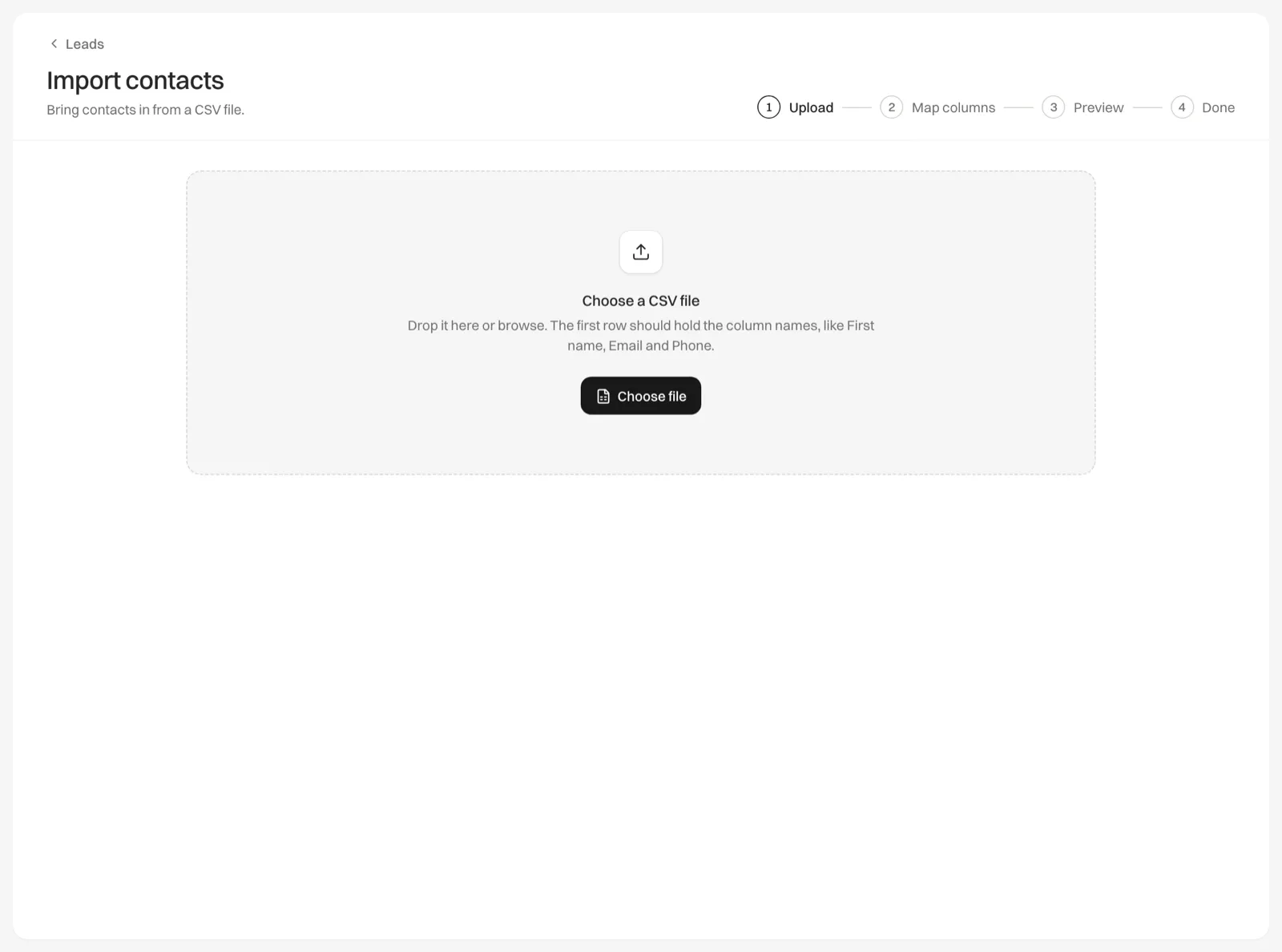
Before you start
- Save your file as CSV. Excel, Numbers and Google Sheets all can.
- The first row should hold the column names, such as First name, Email and Phone.
- Each row needs at least a name, an email or a phone number. Rows with none of them are skipped.
Upload
Drop the file on the page, or click Choose file.
Map columns
Each column in your file has a menu for the Relivo field it fills: First name, Last name, Email, Phone, Company, Lead source, Lead type, Address, City, State, ZIP, Tags or Notes. Common column names are matched for you. Choose Skip this column for anything you don’t want. The first row’s values show beside each column so you can check.
Preview
Click Preview, which shows how many rows the file has. You see the first 10 rows as Relivo will read them. Click Back to change the mapping.
Import
Click Import, which also shows the row count. When it’s done, Import complete shows how many new contacts were added, how many duplicates were merged and how many rows were skipped.
How values are read
- Lead type: words like Buyer, Seller, Buyer & Seller, Investor, Renter or Tenant are understood. A blank or unrecognized type becomes Buyer.
- Tags: separate several tags in one cell with commas.
- Phone: 10-digit US numbers get the +1 country code. Write other countries’ numbers with + and the country code. A cell like “N/A” counts as blank.
- Notes: kept with the contact and included in both exports, for new contacts and when a merge adds to them. Imported notes don’t appear on the contact’s record or timeline, so add anything you need to see there on their Notes tab.
- Names: a column called Name fills First name. A row with an email or phone but no name is saved as “Unknown”, which a later import can fill in.
- Everyone you import starts at the first lead stage, New Lead.