

Search, filter and sort your contacts and leads
Find people fast on Contacts and Leads with search, the type filters, stage, tags and source, and the sort menu.
Use the search box at the right of the filter bar to find someone by name, email or phone. For a phone number, type the digits only, without spaces, brackets or dashes. To search everything from any screen, press ⌘ K on a Mac or Ctrl K on Windows, or click Search in the sidebar. That finds contacts, deals and listings.
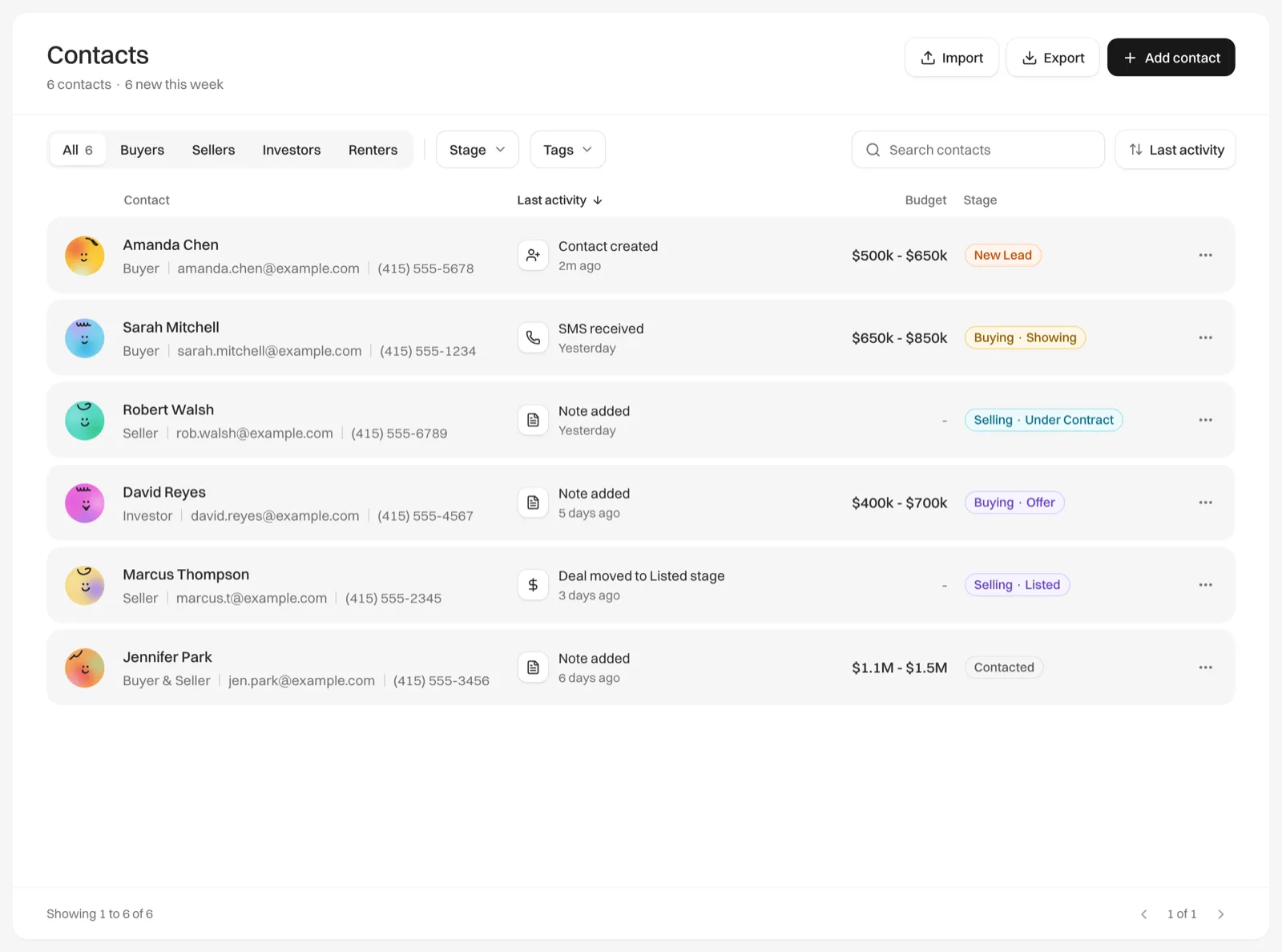
Contacts
- The tabs: All, Buyers, Sellers, Investors or Renters. A Buyer & Seller counts as both.
- Stage: a lead stage, or a deal stage on either side. See What the stage badge shows.
- Tags: every tag in use on your contacts.
- The sort menu: Last activity (the default, newest first), Newest, Name or Stage.
Leads
- The tabs: All, Not contacted, Buyers or Sellers. Not contacted is a lead you haven’t reached out to yet; it carries an orange dot while there are any. Sending them an email, logging a call or text, or adding a note takes them off it.
- Stage: New Lead, Contacted or Qualified.
- Source: every lead source on your open leads. Leads you added without a source show “Added by you”.
- The search box also matches the lead source.
- The sort menu: Newest (the default), Last activity, Name, Stage or Source.
Tips
- Click a column heading to sort by it, and click it again to flip the order.
- Lists show 10 people a page. The footer tells you how many match, and “filtered from” the total when a filter is on.
- When nothing matches, click Clear filters to start again.
- Export saves the list exactly as filtered and sorted. See Export your contacts.