

Choose how you hear about new leads
Turn email and text alerts on or off for new leads, microsite inquiries, task reminders and the weekly summary.
Open Settings > Notifications to choose, for each kind of event, whether Relivo tells you by email, by text, or both. Each event is a row, with a switch under Email and under Text.
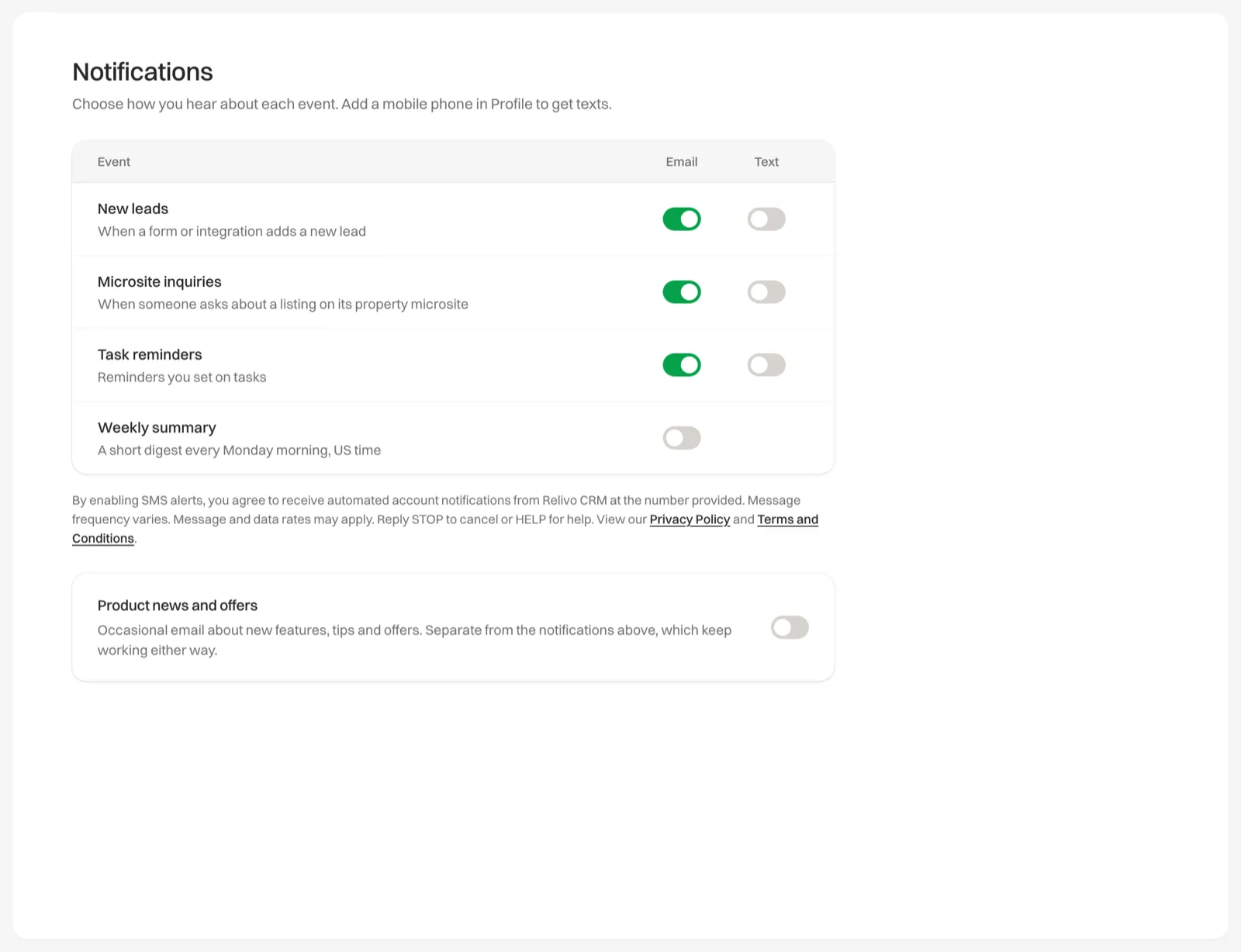
The events
| Event | When it is sent | Text | |
|---|---|---|---|
| New leads | A lead form or form integration adds a new lead | On | Off |
| Microsite inquiries | Someone asks about a listing on its property microsite | On | Off |
| Task reminders | A reminder you set on a task comes due | On | Off |
| Weekly summary | Monday morning, US time | Off | No text option |
The Email and Text columns show how a new account starts. A contact you add yourself, or bring in from a CSV file, doesn’t send a new-lead alert.
Change a setting
Open Notifications
Click Settings in the sidebar, then Notifications.
Flip the switches
Turn each switch on or off. A bar appears at the bottom saying You have unsaved changes.
Save
Click Save changes, or Discard to put the switches back.
Texts go to the Mobile phone in Settings > Profile. The page tells you which number that is, or asks you to add one. See Text alerts to your phone.
Task reminders
Each task’s reminder has its own choice of Text message and Email, picked when you set the reminder. The Task reminders switches here are the master switches: with one off, no task reminder is sent that way, whatever the task says. See Tasks and reminders.
Alerts for one microsite
Each property microsite also has its own Email me when someone fills in the form switch. With it off, that microsite’s inquiries send no alert at all, by email or text, even when Microsite inquiries is on here. See Where captured leads land.