

Add a lead form to your website
Create a lead form in Relivo, paste its embed code into your website, and every submission becomes a contact.
A lead form is a short piece of code you paste into a page of your website. The form shows on that page, and each time someone fills it in, Relivo adds them as a lead.
Create the form
Open Lead forms
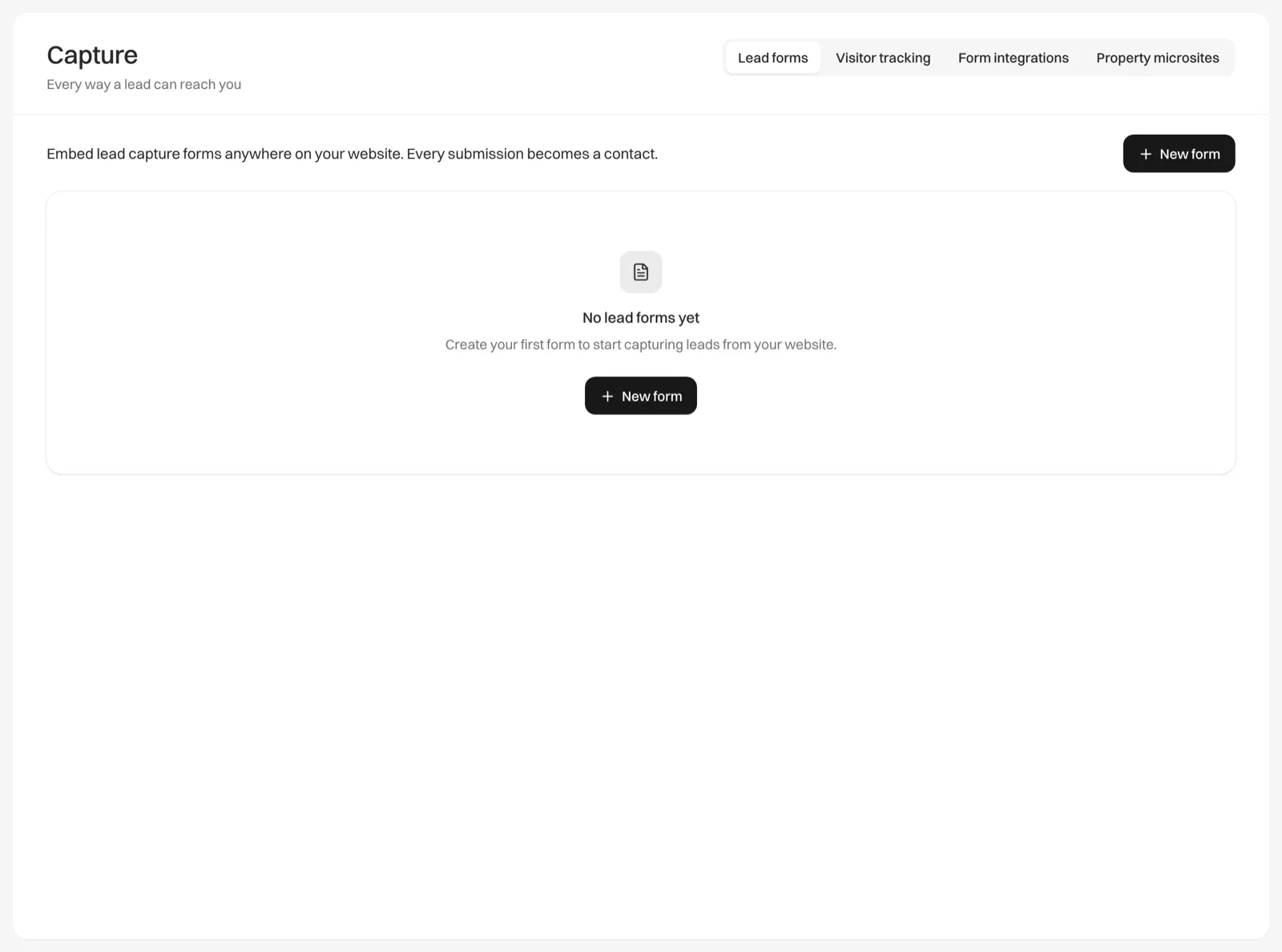
Click Capture in the sidebar. Lead forms opens first.
Start a new form
Click New form.
Name it and choose a type
Give it a Form name your visitors won’t see, such as “Homepage”. Then choose a Form type: Contact form, Home valuation, Buyer consultation or Seller consultation. Lead form templates lists the fields each one asks for.
Create it
Click Create form. The form is on as soon as it is created.
The form’s name becomes the lead source, followed by the word “form”: leads from a form called “Homepage” come in with the source “Homepage form”. Name each form after where it sits, so Analytics can tell them apart.
Put it on your website
Copy the embed code
On the form’s row, click Embed code, then Copy.
Paste it into your page
Paste the code into the body of the page where the form should appear. In most site builders, that means adding a block or element for custom HTML or embed code, and pasting the code into it.
Publish and check
Publish the page and open it. The form loads in a moment. Each form row on Lead forms counts its leads and shows when the last one came in.
You can paste the same code on as many pages as you like. To tell pages apart in your reports, create a separate form for each.
Preview a form
Click the eye button (Preview form) on the form’s row to open the form on its own page. The preview is the real form: anything you submit there creates a contact, so use your own details and delete the contact afterwards.
What visitors see
The form shows the fields of its template and a Submit button. When the form asks for a phone number, a short consent statement sits under the button. It names your company from Settings > Profile, or your name if you haven’t added a company, and says you may call or text them about their inquiry. After they submit, the form thanks them and says you’ll be in touch soon.
Relivo checks each submission for bots without showing visitors a puzzle in most cases.
Turn a form off or delete it
Click the menu button (three dots) at the end of the form’s row:
- Turn off stops the form taking submissions. Your website shows “Form unavailable” in its place, and the row shows Off. Choose Turn on to bring it back.
- Delete removes the form for good. Websites that embed it stop showing it. Contacts it already brought in stay.