

The deal page
What a deal's page shows, from its details and listing to its tasks, notes and the contact's timeline.
Click a card on Pipeline, or a deal under Deals on a contact’s page, to open the deal’s own page.
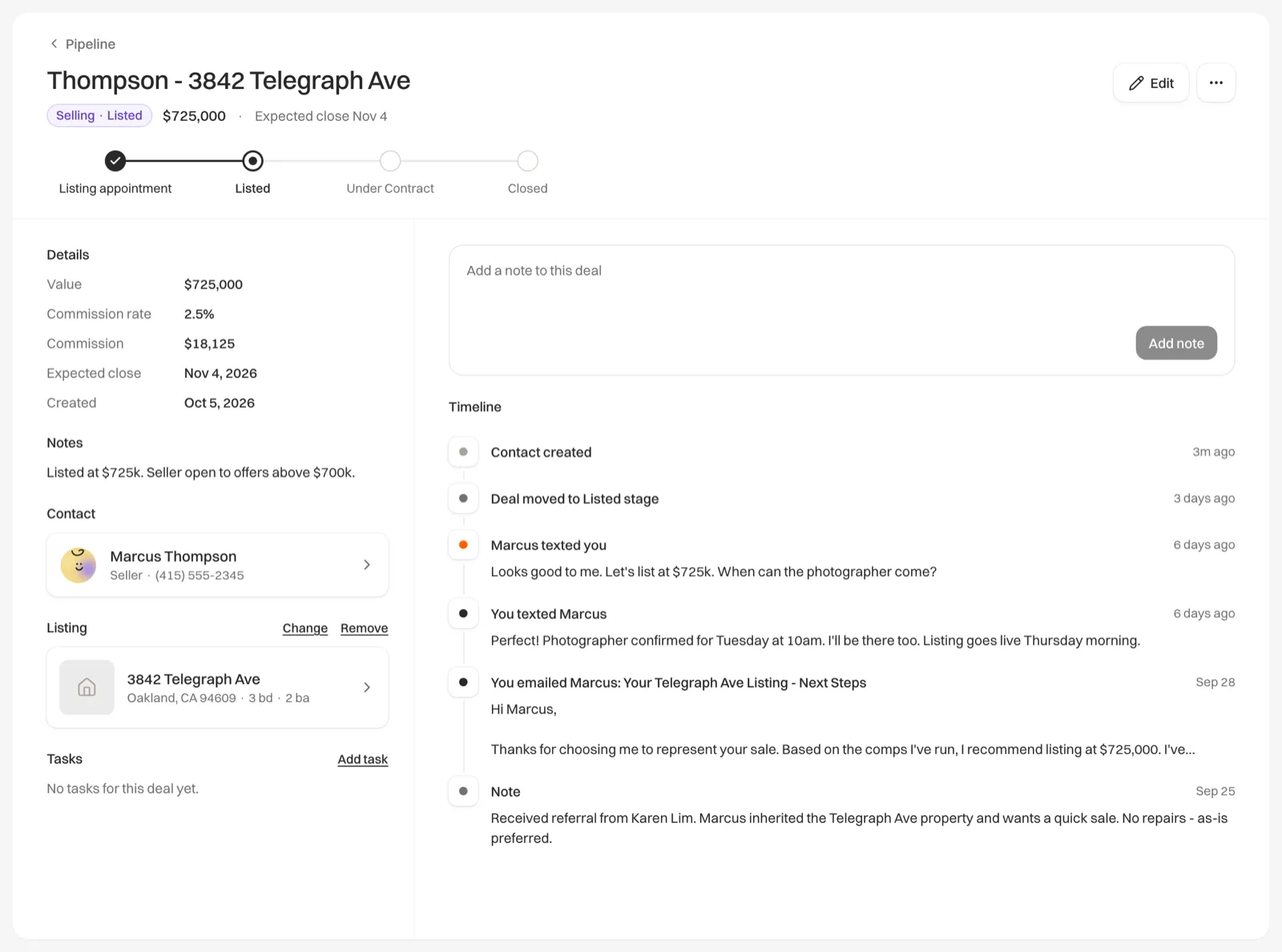
The top of the page
- The deal’s name, its stage (such as “Buying · Offer”), its value and its expected close date.
- Edit opens Edit deal, and the three-dot button holds Delete deal. See Edit, change the side of or delete a deal.
- The row of stages moves the deal. Click a stage to move it there. See Move a deal to its next stage.
- Pipeline at the top left takes you back to the board, on the deal’s side.
Details
- Value, Commission rate and Expected close, as you entered them.
- Commission: while the deal is open, its value at the deal’s commission rate. After closing, the figure you recorded. Until the deal has both a value and a rate, this row reads Est. commission with a dash.
- Sale price and Closed, once the deal has closed.
- Created: the day you added the deal.
- Notes, when you have written some in Edit deal.
Contact and listing
Contact links to the person the deal is with.
Listing shows the home the deal is about. Click it to open the listing.
- Change lets you search your listings and pick another. Remove unlinks it.
- With no listing linked, search for one, or click one next to Suggested:. A Buying deal suggests the homes the contact asked about on a property microsite or have a showing for. A Selling deal suggests the contact’s own listings that don’t have an open Selling deal yet.
Tasks
Tasks lists the tasks for this deal. Overdue ones say how many days late they are.
Add a task
Click Add task. In Add a task, write the Task, and pick a Due date and a Priority if you like.
Save it
Click Add task. The task belongs to the contact too, so it also shows on their page and on Today when it’s due.
Mark it done
Click the circle next to the task.
Notes and timeline
Write in Add a note to this deal and click Add note, or press ⌘ Enter (Ctrl Enter on Windows). The note goes on the contact’s timeline.
Timeline shows the contact’s whole timeline, with emails, notes, showings and deal events, so you see the deal in context.