

Create and publish a property microsite
Build a property microsite from one of your listings, save it as a draft, and publish it when it is ready.
A property microsite is built from a listing. Start one from the listing, or from the microsites list, then publish it when it looks right.
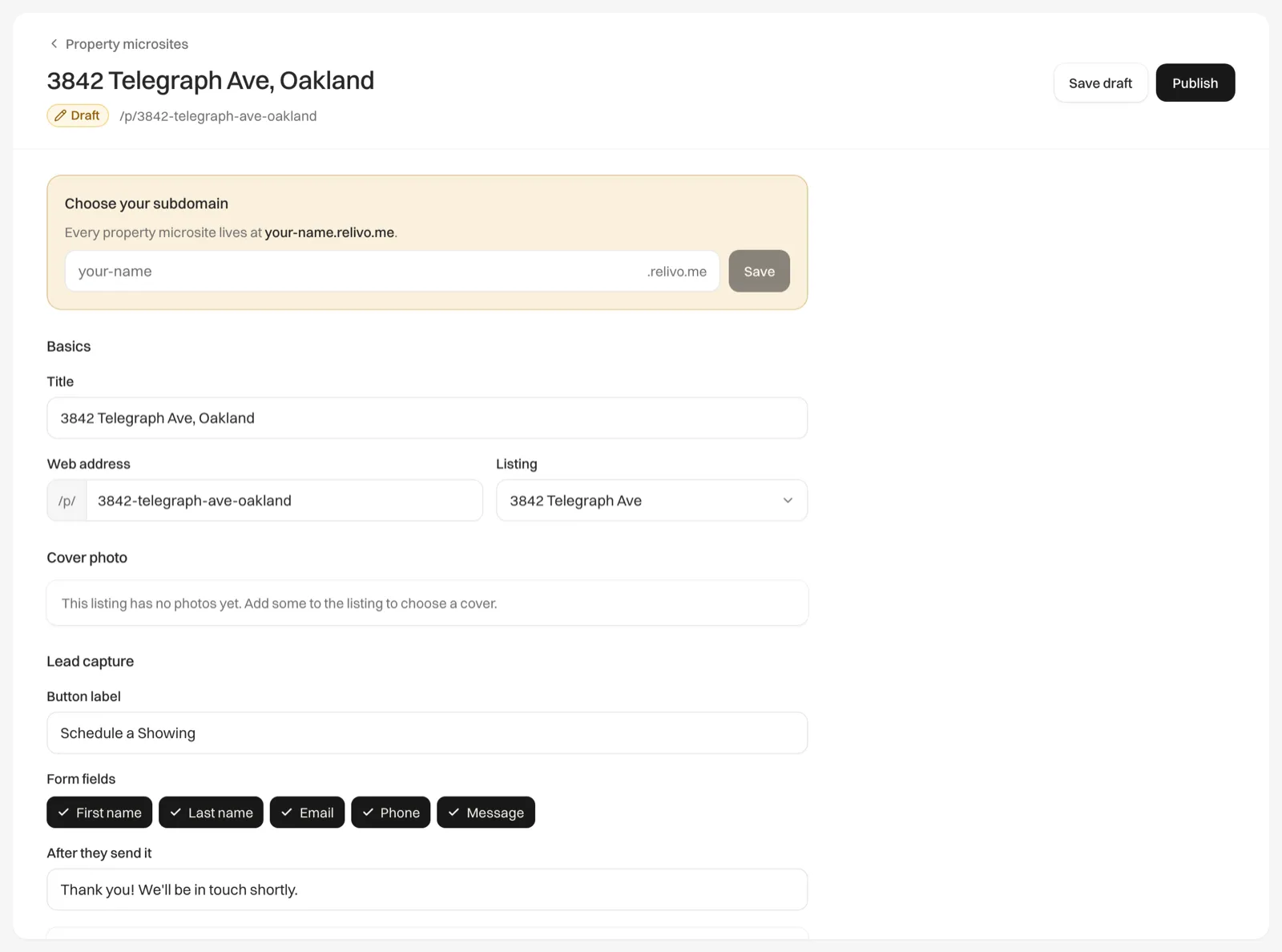
Start the microsite
Open the listing from Properties and click Create microsite, which appears once you have chosen your subdomain. Or go to Capture > Property microsites and click New microsite.
Choose the listing
Under Basics, pick the home under Listing. A listing that already has a microsite shows “(has a microsite)” and can’t be picked. Choosing a listing fills in the Title with its address and city, and takes its first photo as the cover.
Check the title and web address
Change the Title if you like. The Web address is made from the title, using lowercase letters, numbers and hyphens, and you can edit it.
Set up the rest
Choose the cover photo, the gallery and the room tour (see Cover photo, gallery and room tour), and the inquiry form under Lead capture (see Microsite inquiries).
Save or publish
Click Save draft to keep working on it later, or Publish to put it online.
Once it is published, the status reads Live and the top of the editor shows Unpublish, View live and Save changes. Changes to a live microsite go online when you click Save changes.
There is no preview inside Relivo. View live opens the real microsite in a new tab.
If publishing doesn’t work
- “Choose your subdomain first”: set your subdomain, then publish again. See Choose your microsite address.
- “Title is required”: give the microsite a title.
- “Slug already in use”: you changed the Web address to one another of your microsites already has. Choose a different one. On a new microsite, Relivo adds a few characters to the end of the address instead.
- A message that your plan includes a number of live property microsites: you are at your plan’s limit. A new microsite isn’t saved when this happens, so click Save draft to keep it. See Live microsite limits.